

Universal Marketplace Connector for Business Central
Bring marketplace orders into Business Central as sales orders, and send status, tracking, invoices, stock and prices back. Setup, daily use, troubleshooting and the full user guide in one place.
What it does
Universal Marketplace Connector links Microsoft Dynamics 365 Business Central to the online marketplaces you sell on. Marketplace orders arrive in Business Central without retyping and become normal sales orders. Your warehouse ships and invoices them as usual, and the connector sends the status, the tracking number and the posted invoice back to the marketplace. In the other direction it publishes your items as offers and keeps stock and prices up to date.
Supported marketplaces: eMAG (and Fashion Days), Altex, Amazon, Trendyol, METRO Markets, ManoMano, Allegro (Poland, Czechia, Slovakia, Hungary), Octopia (Cdiscount) and any marketplace that runs on Mirakl. Each adapter is built on the marketplace's seller API. You can connect several accounts of the same marketplace, for example eMAG Romania and eMAG Bulgaria, and any mix of marketplaces.
The solution has two parts:
- The Business Central extension, for Business Central online. It adds the Marketplace Orders and Marketplace Returns lists, a setup page, marketplace fields on items and sales orders, and the interface the connector service uses. It contains no marketplace-specific logic.
- The connector service, with its web console, which you run on your own Windows or Linux server or in a Docker container, or which 365vanguard hosts for you. It talks to the marketplaces and to Business Central on a schedule and keeps your marketplace credentials encrypted on the server that runs it.
Prefer not to run a server? 365vanguard can host the connector service for you in the EU: a dedicated instance for your company with its own HTTPS address, a fixed outbound IP for marketplaces that require one (eMAG), monitoring, nightly backups and updates included. Hosting is offered with Business Central online; contact us for pricing.
When you run the service yourself, orders, buyer details and credentials stay between your server, your Business Central and the marketplaces, and the service sends nothing to 365vanguard.
Key capabilities
- Orders in. Orders arrive in Marketplace Orders with buyer, billing and delivery address, company VAT ID, lines, discounts, shipping fee and payment method. They become sales orders automatically, or with one click. Unmapped SKUs and errors are flagged on the order, not lost.
- Customers per marketplace account. Private buyers go to one generic customer, with the buyer's own name and address on the sales order and the printed invoice, or each buyer gets a customer card of their own. Companies can get their own customer, with VAT registration no.
- Returning buyers recognised. By the marketplace buyer id, the VAT registration no. or the e-mail. Delivery addresses are saved as ship-to addresses and reused.
- Status, AWB and invoices out. Order acknowledgement and status, AWB and tracking numbers (or shipping labels where the marketplace issues them), and the posted invoice PDF go back to the marketplace.
- Offers, stock and prices. Items you enable on the Marketplace FastTab of the item card are published as offers. Stock and prices follow Business Central, with a safety buffer and a cap per account.
- Returns. Marketplace returns arrive in Marketplace Returns and become sales return orders, copied from the posted invoice.
- Romanian e-Factura. With our E-Invoice app installed, the connector fills the ANAF county code and the Bucharest sector on customers, ship-to addresses and sales orders, so marketplace invoices go to e-Factura without manual fixes.
- Web console. A dashboard, every order, job and API call, retries, holds, SKU remapping and a full log. The console is in English and Romanian.
Requirements
- Microsoft Dynamics 365 Business Central online (SaaS), version 28 (2026 release wave 1) or later.
- License Manager, our free licensing app. Business Central installs it automatically as a dependency.
- A server for the connector service, unless 365vanguard hosts it for you: Windows Server 2016 or later / Windows 10 or later (x64), Linux x64 with systemd (Debian 12, Ubuntu 22.04 or later, RHEL 9 or later), or Docker Engine 24 or later. 2 vCPU, 2 GB RAM and 5 GB disk are enough. No .NET runtime is needed.
- A Microsoft Entra app registration in the tenant of your Business Central environment, so the service can sign in to Business Central (see setup).
- A seller account with API access on each marketplace you connect.
- Network: outbound HTTPS from the server to Business Central and the marketplace APIs, and TCP port 5080 from the operators' browsers to the server.
- Outbound HTTP requests allowed for License Manager in Business Central.
Installation
Install Universal Marketplace Connector from its Microsoft Marketplace listing or from inside Business Central, under Extension Management → Extension Marketplace. Business Central installs License Manager automatically.
If you'd rather plan the installation with us, contact us.
If 365vanguard hosts the connector service for you, you skip this step: we give you the console address and you continue with the setup wizard. To run it yourself, install the service separately, on one server per Business Central company. 365vanguard provides the Windows installer, the Linux package and the Docker image for your version. On Windows it runs as the Universal Marketplace Connector service, which starts automatically. After installation, the browser opens the setup wizard at http://<server>:5080/setup.
Setup
Install in this order: the Business Central extension, then Business Central access for the service, then the connector service, and finally the setup wizard in the web console.
Business Central access for the service
The connector service signs in to Business Central as an application, so it does not use a user licence.
- In the Azure portal, signed in to the tenant that owns your Business Central environment, open Microsoft Entra ID → App registrations → New registration. Choose Accounts in this organizational directory only and leave the redirect URI empty.
- Note the Application (client) ID and the Directory (tenant) ID. Under Certificates & secrets, create a client secret and copy its value; it is shown only once. Put the expiry date in your calendar.
- Under API permissions, add the Dynamics 365 Business Central application permissions
API.ReadWrite.AllandAutomation.ReadWrite.All, then choose Grant admin consent in the Azure portal. - In Business Central, open Microsoft Entra Applications, choose New, paste the client ID and set State to Enabled.
- Under User Permission Sets, add the connector's permission set Marketplace Connector - All and D365 BUS FULL ACCESS (or an equivalent set that allows creating and posting sales documents, items and customers).
Universal Marketplace Connector Setup
Search for Universal Marketplace Connector Setup. There is one setup per company.
- Default Location Code: the location used to calculate marketplace stock and the default location on sales orders. Empty means all locations.
- Auto Release Orders: release sales orders created from marketplace orders automatically.
- VAT Bus. Posting Group: used with each item's VAT product posting group to find the VAT % published to the marketplaces. For Romanian consumers, use the group for customers not registered for VAT.
- Price Group Code: the customer price group whose sales prices are published. When empty, the item's unit price is used.
- Customer Template Code: the template for customers the connector creates. It must carry the posting groups and payment terms, otherwise orders of new customers cannot be posted.
- Default Customer No.: the customer for orders that carry no customer and do not create one.
Items
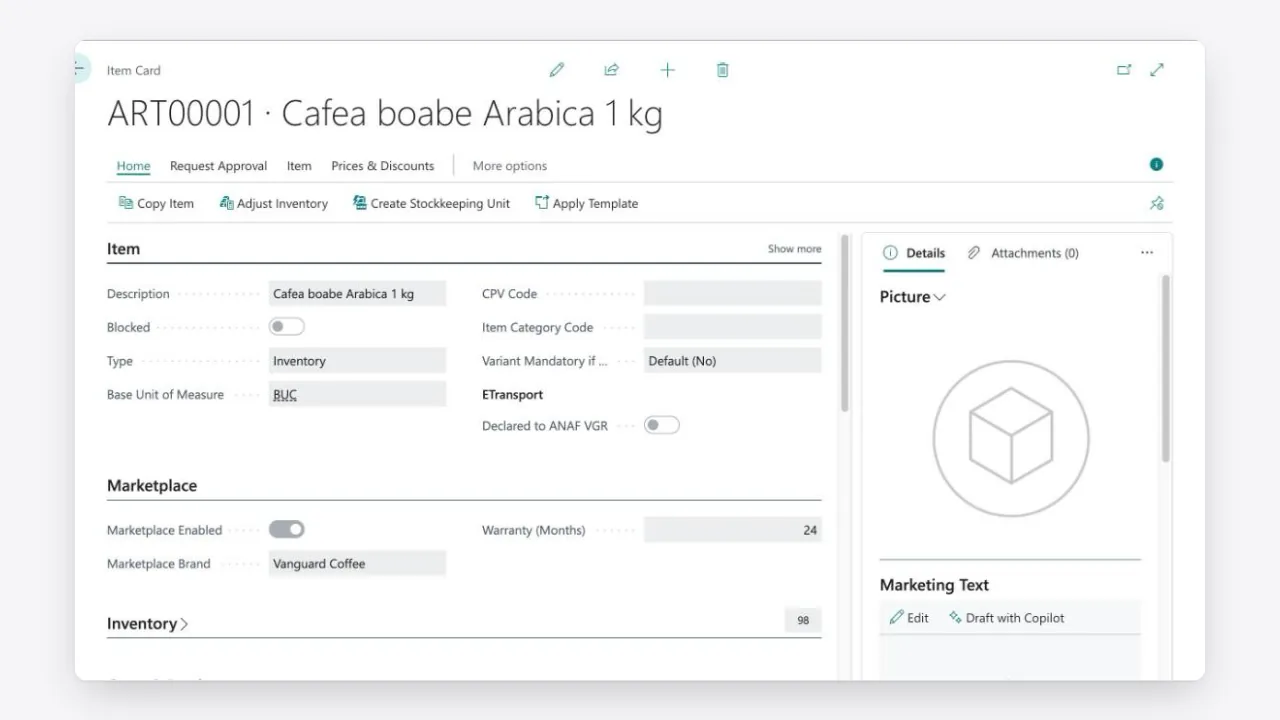
Only items you enable are sent to the connector. On the item card, the Marketplace FastTab has Marketplace Enabled, Marketplace Brand and the warranty in months. The item also needs a VAT product posting group with a VAT posting setup for the setup's VAT business posting group; otherwise the published VAT % is 0.
Allow outbound HTTP requests
License Manager must be able to reach the internet. Business Central blocks these requests by default in sandbox environments, and an administrator can also block them in production. To allow them:
- Open the Extension Management page.
- Select the app and choose Configure.
- Turn on Allow HttpClient Requests.
For License Manager, the 365vanguard Licenses page also has an Allow HTTP requests action that takes you to this setting.
Setup wizard in the web console
Open http://<server>:5080/setup in a browser.
- Administrator. Enter an Instance name and the first administrator's Display name, E-mail and Password. This account is only for signing in to the web console.
- Business Central. Choose Business Central online (SaaS) and enter Tenant id, Environment (exactly as in the Business Central admin center), Client id (application id) and Client secret. Choose Test connection, select the Company and, optionally, a Default location code, then Save connection.
- Marketplace. Choose a marketplace provider, enter a display name, the marketplace credentials and the Business Central defaults (below). Choose Test connection and Save account. Add more accounts now or later under Marketplaces.
- Sync schedule. Review the background jobs and their intervals. The defaults follow each marketplace's polling limits. If you are migrating an existing catalogue, consider switching off Push stock and Push prices until your listings are mapped.
- Finish. Choose Run first sync and open dashboard.
Business Central defaults per marketplace account
Every marketplace account has a BC defaults tab that decides how its orders become sales orders:
- Private buyers: Generic customer (orders go to the account's Default customer, with the buyer's name and address on the sales order) or One customer per buyer.
- Create BC customer for legal entities: companies get their own customer card, found by VAT registration no. or created from the template.
- Save delivery addresses as ship-to addresses: each delivery address is stored as a ship-to address of the customer and reused when it comes again.
- Payment method codes for cash on delivery, card and bank transfer, the Shipping charge item, the External document no. prefix (for example
EMAG-), currency and customer price group. - Automation: Push new orders to BC automatically, Acknowledge new orders automatically, Upload posted invoices automatically, Push BC availability as stock and Push BC prices, plus Stock safety buffer and Max published stock.
The user guide explains what to obtain from each marketplace and how to fill in its connection settings.
Daily use
Dashboard and order inbox
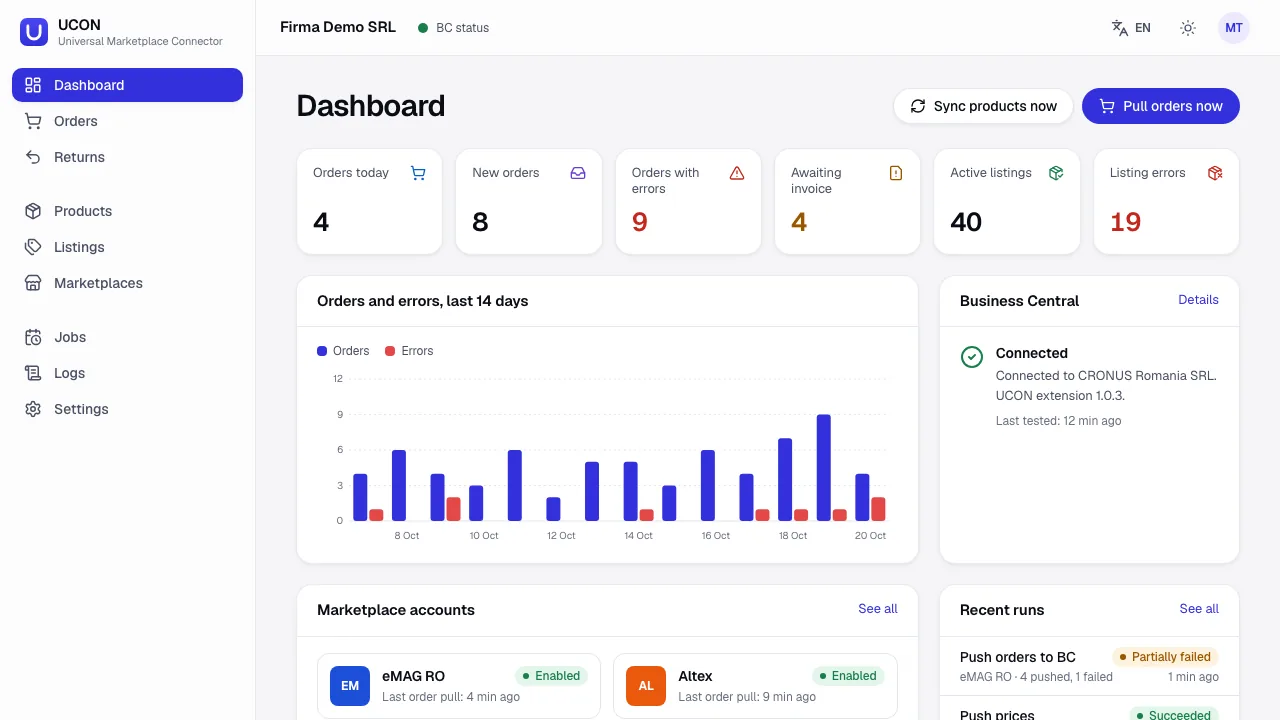
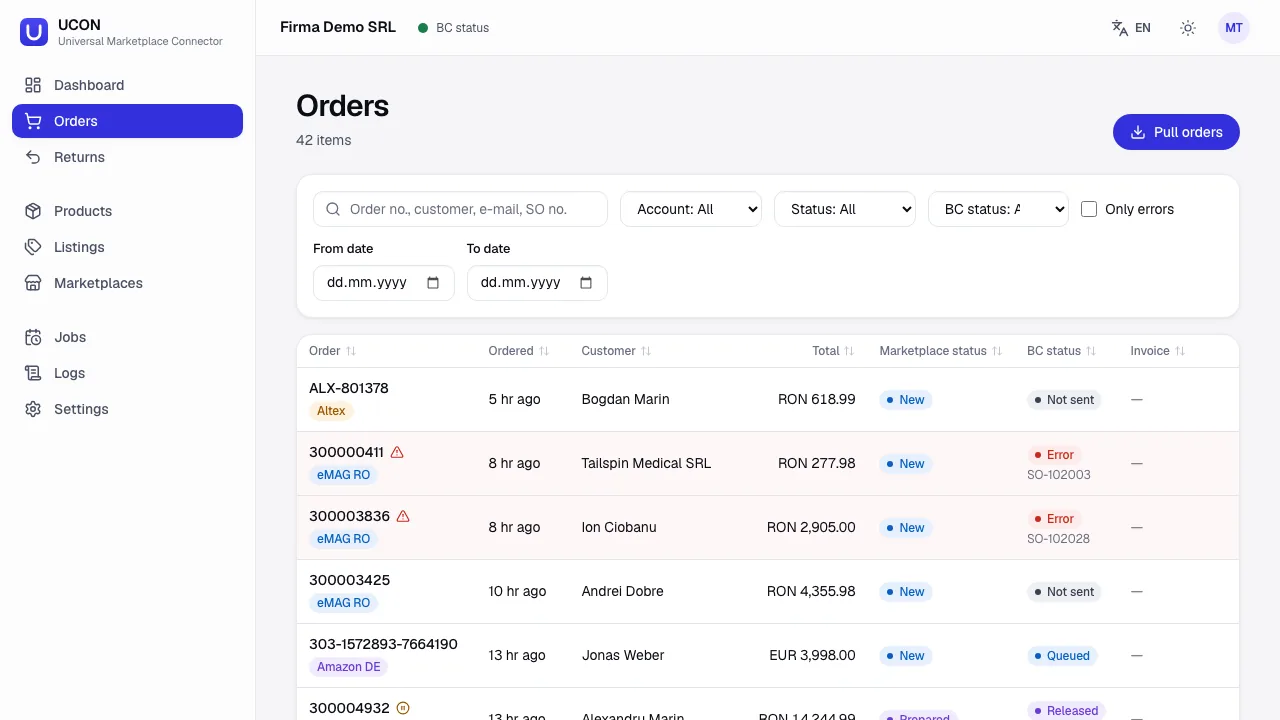
Sign in to the web console with your e-mail and password. The dashboard shows what needs attention today: Orders today, New orders, Orders with errors, Awaiting invoice, Active listings and Listing errors, the state of the Business Central connection and of each marketplace account. Orders lists every marketplace order with two statuses: the marketplace status (New, Acknowledged, Prepared, Shipped, Delivered, Finalized) and the BC status (Not sent, Queued, Sent, Released, Shipped, Invoiced, or Error).
From marketplace order to posted invoice
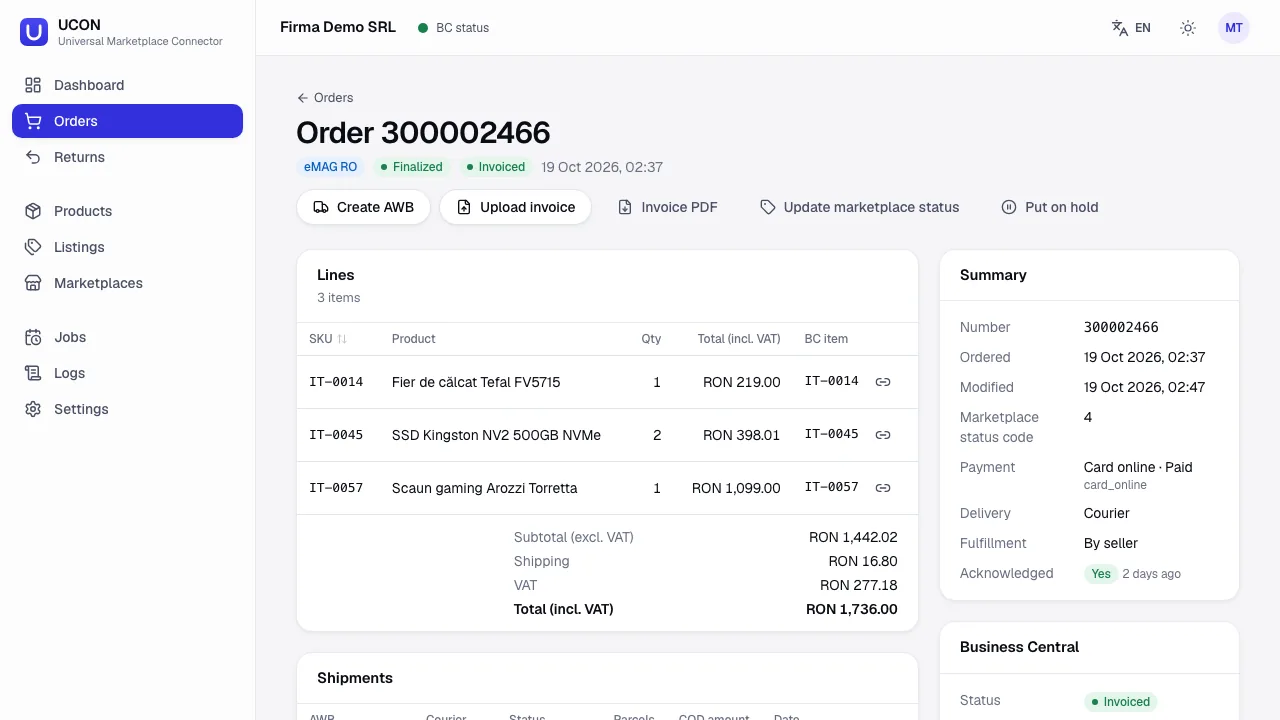
- The Pull orders job imports the order and, if switched on, acknowledges it.
- The Push orders to BC job creates the Marketplace Order and the sales order in Business Central.
- Your team picks, ships and posts the shipment in Business Central as usual.
- Register the shipment on the marketplace with Create AWB: a label issued through the marketplace (eMAG, Altex), or the number from your own courier. The AWB is also written to the sales order.
- Post the sales invoice. The Push invoices job uploads the invoice PDF, and Invoice uploaded turns to Yes.
Marketplace Orders in Business Central
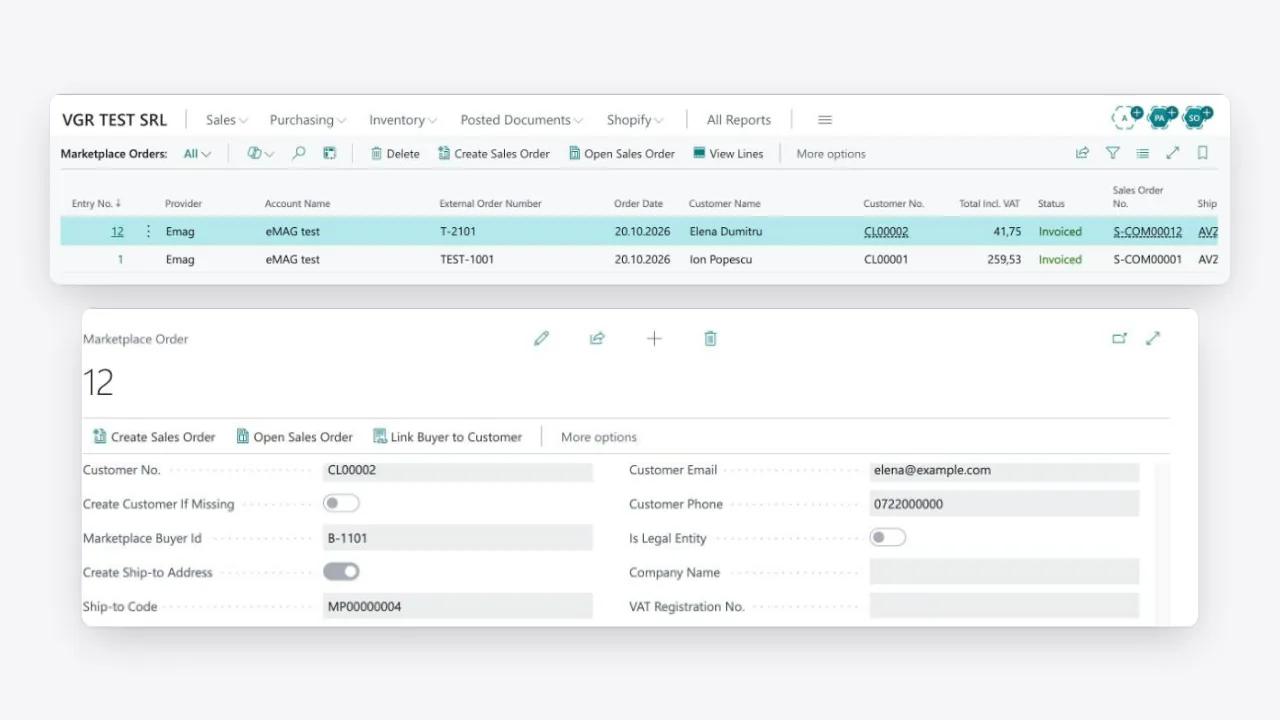
Search for Marketplace Orders. The list shows every order received, with its Status, sales order, shipment and invoice numbers, AWB number and Error Message. Create Sales Order creates or retries the sales order, and Open Sales Order opens it. On a pending or failed order you can correct data, for example the customer no. or an item no. on a line, and choose Create Sales Order again. To book a buyer's orders to a particular customer, choose Link Buyer to Customer on the order; Marketplace Buyers lists all links.
Order actions in the web console
- Push to BC and Retry send an order to Business Central again after you fixed an error. An order never creates two sales orders.
- Map to BC item maps an order line whose SKU is unknown. An order is not sent until every line is mapped.
- Put on hold / Release hold: background jobs skip held orders.
- Update marketplace status cancels an order (a reason is required). An open, unposted sales order created from it is deleted.
- Upload invoice sends the posted invoice again.
Returns
The Pull returns job imports return requests. Review the return and choose Push to BC: Business Central creates a sales return order, copied from the posted invoice. Receive the goods and post the return receipt and credit memo as usual. In Business Central, Marketplace Returns shows the same returns with their status.
Listings, stock and prices
Products shows the marketplace-enabled items read from Business Central. Select them and choose Create listings for an account, then Publish on Listings. The available quantity is the inventory at the default location minus the quantity on open sales orders, so stock sold through any channel comes off every marketplace at the next sync. The published stock is that quantity minus the account's safety buffer, limited to the maximum you set.
Licensing and trial
Universal Marketplace Connector is licensed through License Manager:
- Per tenant. One licence covers your organisation's Microsoft Entra tenant: every production and sandbox environment in it.
- Automatic trial. The first time the app is used in a tenant, a free 30-day trial starts, one per tenant for each app. The days left are shown in Business Central.
- Subscription. After the trial, you order a subscription directly from us. Contact us for pricing.
- At expiry. The app keeps working for a 14-day grace period, with a warning for administrators. After that its own actions stop, but your data stays in Business Central and stays readable, and standard Business Central keeps working.
- Sandboxes. A sandbox that cannot reach the licence service is never restricted.
- Not resellable. A licence belongs to one organisation and cannot be transferred.
The full terms are in our licence terms (EULA).
While the connector is not licensed, the connector service cannot use its Business Central interface, and Create Sales Order and Create Return Order stop with a licence message. Shipments and invoices you post meanwhile are reported to the marketplace on the first run after the licence is active again.
Troubleshooting
- Business Central test: 401 Unauthorized. The client secret expired or was mistyped, the app is not in Microsoft Entra Applications or not Enabled, admin consent is missing, or the tenant id is wrong.
- AADSTS700016: Application … was not found in the directory. The app registration is in another tenant than Business Central. Register it in the tenant of the Business Central environment.
- Environment does not exist [NoEnvironment]. Copy the environment name exactly from the Business Central admin center.
- Business Central test: 403 Forbidden. Permission sets are missing. Assign Marketplace Connector - All and D365 BUS FULL ACCESS, and check the Company field of the assignment.
- Not licensed, or the licence could not be verified. Open 365vanguard Licenses and choose Check now. In a sandbox, allow HTTP requests for License Manager. If License Manager cannot reach the licence service yet, for example because outbound HTTP is blocked, the connector keeps working for a 14-day start period. See also License Manager troubleshooting.
- Order line Not mapped, or "Item … does not exist". The marketplace SKU differs from the item no., the item is not marketplace-enabled, or a variant is needed. Use Map to BC item, or fix the listing SKU, or enable the item and choose Sync from BC.
- BC status Error with a Business Central message. Posting setup, dimensions, credit limit, or a blocked customer or item. Fix it in Business Central, then choose Retry. After 5 failed attempts in a row the order waits for Retry.
- New marketplace customers cannot be invoiced: posting group missing. Set a Customer Template Code with posting groups and payment terms, fill in the missing groups on customers already created, then post.
- Posting stops: ANAF county or sector missing. The marketplace sent a county that could not be recognised, or a Bucharest address without a sector. The marketplace order shows a warning. Set the county (and sector for Bucharest) on the sales order, and on the customer or ship-to address if it will be reused.
- Published VAT % is 0. There is no VAT posting setup for the setup's VAT Bus. Posting Group and the item's VAT product posting group. Create it, then choose Sync from BC.
- Invoice not uploaded, "PDF not available". Report Selection - Sales, usage Invoice, points to a report that is not installed in this environment, typically in a sandbox. Choose a report that exists, then Upload invoice again.
- Stock published as 0 for everything. The default location has no inventory, or the safety buffer is larger than the stock.
- HTTP 429 in runs or the API log. Intervals are too short, or another tool uses the same API user. Increase the intervals and use a dedicated API user for the connector.
- Orders imported twice. Two connector installations use the same marketplace account, for example test and production. Run exactly one installation per marketplace account.
Every run and every call to Business Central and the marketplaces is in the web console under Jobs and Logs. When you contact us, send the order number, the run's error details and the relevant API calls.
User guide
The user guide covers everything on this page in more detail: what to obtain from each marketplace and how to connect it, the web console page by page, every status, monitoring, backup and upgrade of the connector service, and security and data protection. It has about 60 pages, with screenshots.
Download the Universal Marketplace Connector user guide (PDF, about 4 MB).
Frequently asked questions
Which marketplaces does the connector support?
eMAG and Fashion Days, Altex, Amazon, Trendyol, METRO Markets, ManoMano, Allegro (Poland, Czechia, Slovakia, Hungary), Octopia (Cdiscount) and any marketplace that runs on Mirakl. You can connect several accounts of the same marketplace and any mix of marketplaces.
Do I need the connector service if I use Business Central online?
Yes. The service does the marketplace communication; the extension alone does not talk to the marketplaces. You run it on your own Windows or Linux server or in a Docker container, or 365vanguard hosts it for you.
Do I need my own server?
No. Prefer not to run a server? 365vanguard can host the connector service for you in the EU: a dedicated instance for your company with its own HTTPS address, a fixed outbound IP for marketplaces that require one (eMAG), monitoring, nightly backups and updates included. Hosting is offered with Business Central online; contact us for pricing.
Where are our marketplace credentials and orders stored?
On the server that runs the connector, in its data folder or a PostgreSQL database: your own server, or the dedicated instance 365vanguard hosts for you. Credentials are encrypted before they are stored and never shown again in the web console. A service you run yourself sends nothing to 365vanguard. In Business Central, License Manager checks the licence once a day, as described in our privacy policy.
How are marketplace buyers turned into customers?
You choose per marketplace account: private buyers on one generic customer, with the buyer's own name and address on the sales order and invoice, or one customer per buyer. Companies can get their own customer. Returning buyers are recognised by the marketplace buyer id, VAT registration no. or e-mail.
Does it work with Romanian e-Factura?
Yes, together with our E-Invoice app. The connector fills the ANAF county code and the Bucharest sector on customers, ship-to addresses and sales orders, so marketplace invoices can go to e-Factura without manual fixes.
What happens to an order with an unknown SKU?
The line is marked Not mapped and the order waits in the web console. Map the line to a Business Central item, or fix the listing SKU, and the order is sent.
Can one installation serve several Business Central companies?
One installation serves one company. For a second company, install a second instance of the connector service, with its own data folder or container.
How does the licence work?
One licence covers all production and sandbox environments of your Microsoft Entra tenant. A 30-day trial starts automatically the first time you use the app. Standard Business Central is never blocked.
Support
Have a question about Universal Marketplace Connector, or is something not working as expected? Write to us and include:
- your tenant ID (on the 365vanguard Licenses page, choose Copy tenant ID);
- the environment name and type (production or sandbox) and the app version (from Extension Management);
- what you did and the exact error text, ideally with a screenshot.
All channels are on our support page.
Release notes
Available on Microsoft Marketplace since October 2026. Notes for each new version will appear here, newest first.
Questions about Universal Marketplace Connector?
We answer in English or Romanian. Tell us what you are trying to do and what you see on screen.